Skip to content
044 499 79 63
uaruen
  • Home
  • Projects
    • Company News
  • Solutions
    • Audio | Video
      • Visual information system
      • Situation centers
      • Video Wall
      • Video Wall Controllers
    • Building Management System
    • Data Networks
      • Wi-Fi
      • Cloud Managed Security & SD-WAN
    • IT-infrastructure
      • Structured Cabling System | SCS
      • Data Centers | Server rooms
      • IP-Telephony
      • VCS
    • Security
      • Access control
      • Automated parking
      • Fire alarm system
      • Intrusion detection system
      • Video surveillance
    • Information Security
      • Acunetix Vulnerability Scanner
      • Cisco ASA Firewalls
      • Rapid7 Solutions
    • Television
      • Hotel TV
      • HeadEnd Station
      • Hoteza Interactive Hotel System
      • Pro:Centric Interactive Hotel System
      • WISIon Interactive Hotel System
  • Services
    • Building Information Modeling
    • Design
    • Integration
    • Maintenance
    • Technical audit
    • Electrical measurements
    • Radio planning
  • About Us
    • Clients
    • Licenses
    • Reviews
    • Quality Policy
    • Partners
    • Vacancies
  • Catalog
  • Contacts

SuperSign W

RCI-ConsultingTelevisionSoftwareSuperSign W
SuperSign W

  • Introduction
  • Key Feature

Introduction

Introduction

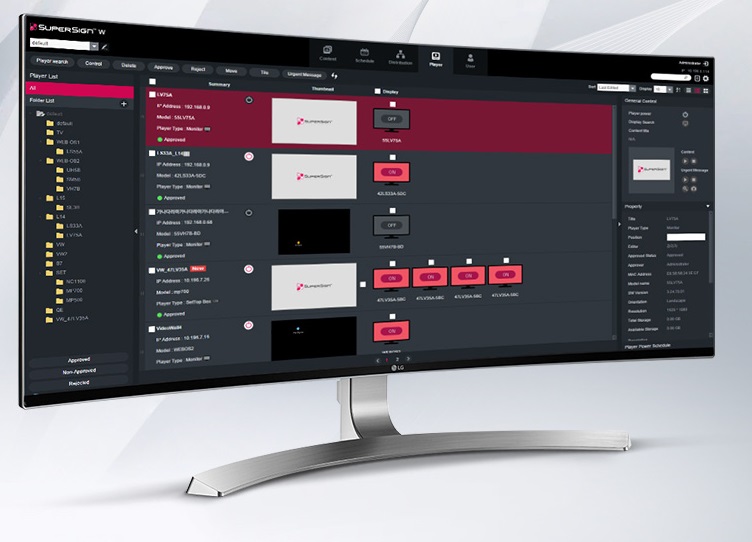
SuperSign lite is Basic signage content management software, and SuperSign W is advanced signage content management software.
Basic functions : Creating a schedule, distributing via Network and managing the player. (Supporting Video wall synchronization function – only SuperSign W)

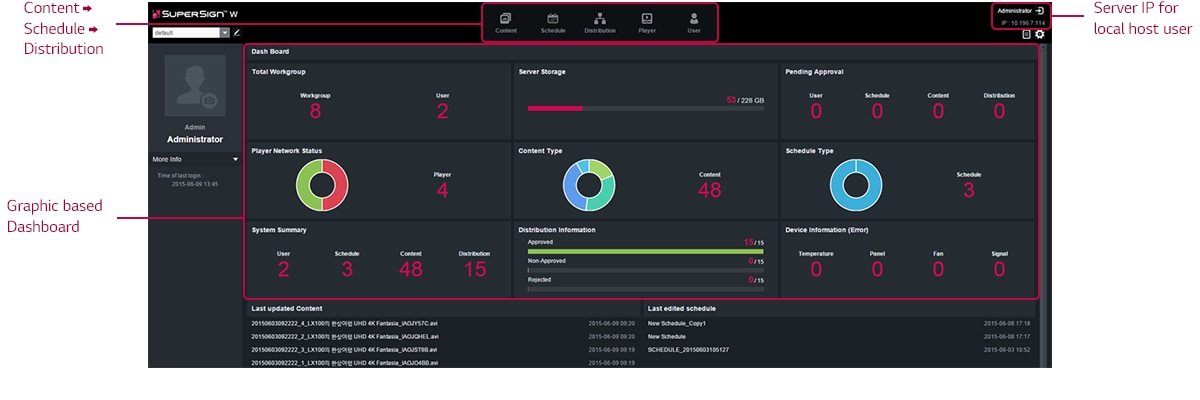
Main Menu
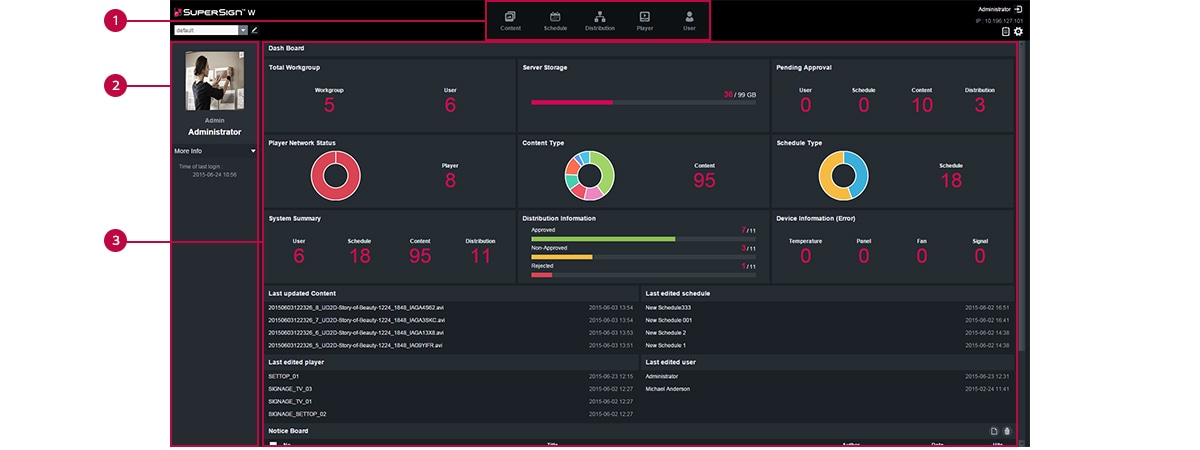
Screen image of SuperSign W main menu

1. Menu tab

Menu tabs for key functions

2. Personal details and monitoring area

Display the user’s personal information : Including name, role and most recent login.

3. Dashboard area

– Dashboard information : goes the details page when the linked information is clicked.
– Moves the category location.

Content
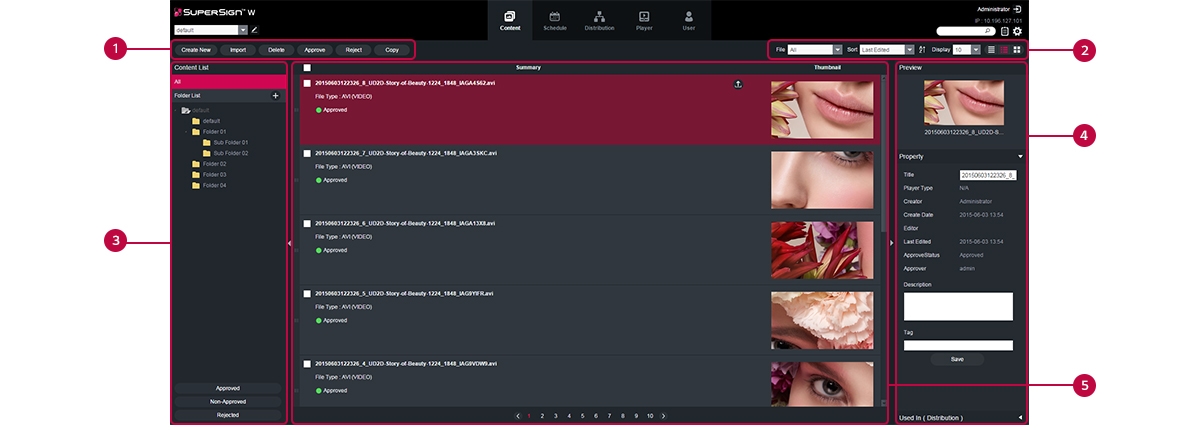
Screen image of SuperSign W content list page

1. Action Buttons

– Create New : Create content.
– Import : Imports content and media. (video, Music, flash, image, PDF/Office)filaes or play lists.
– Delete : Delete content.
– Approve : Approve content.
– Reject : Reject Content.
– Copy : Copies or moves multiple content.

2. Sorting

– File : Sort by content create.
– Sort : Sort by various category. (e.g., Last date update)
– Sort in ascending or descending order.
– Display : set the number of items to display by pressing the ▼ button.
– List view/ Normal view/ Thumbnail view

3. Content list

Shows the list of stored content.
– All : Shows the list of all content.
– Approval : Shows the list of approved content.
– Non-Approved : Shows the list of non-approved content.
– Rejected : Shows the list of rejected content.

4. Details list

– Summary
· Displays file name, file type, player type, approval status.
· Enabled when you click the mouse.
· Switches to the content editing screen.
· Exports the content.
– Thumbnail : The thumbnail image of content.

5. Detail

Allows the user to check the content details and edit the information for the content.
– Preview : Shows a preview of the image in the content file.
– Property : Allows the user to check or edit the information entered when adding a content file.
– Used in (area) : Displays the area (schedule, player, content) in which the content is used and it details.

Player
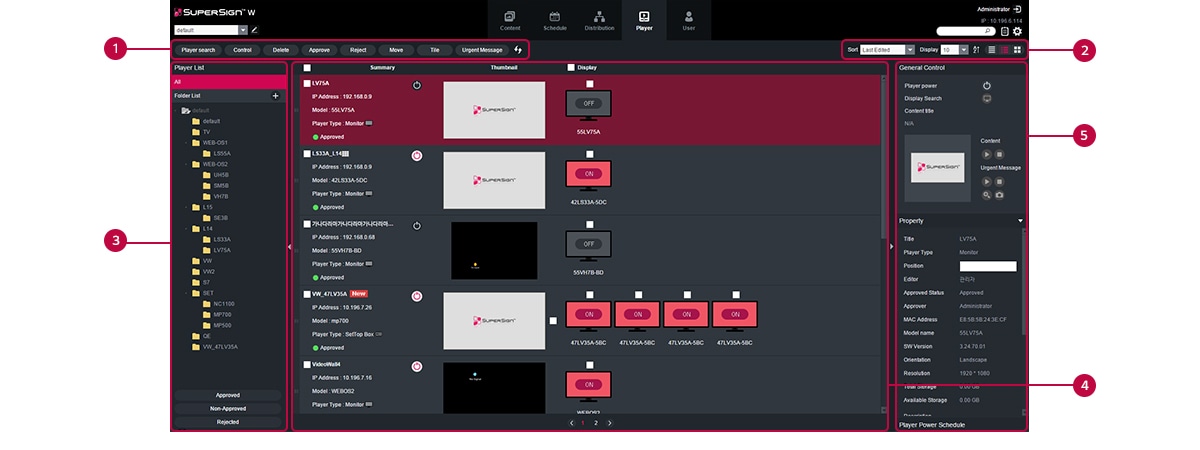
Screen image of SuperSign W player list page

1. Action Buttons

– Player search : Search players.
– Control : Opens the Control pop-up.
– Delete : Deletes a player.
– Approve : Approves a player not approved.
– Reject : Rejects a player not approved.
– Move : Moves multiple players.
– Tile : Enables the Tile mode.
– Urgent Message : Sends an urgent message. For more information, see 77 page, “urgent Message”.
– Refresh the current display and status of the player, or browse a new player.

2. Sorting

– Sort : Sort by various category. (e.g., Last date update)
– Sort in ascending or descending order.
– Display : set the number of items to display by pressing the ▼ button.
– List view/ Normal view/ Thumbnail view

3. Player list

View the list of players saved.
– All : View the list of all players.
– Group : Shows the player list in a group.
– Approval : View the list of approved players.
– Non-Approved : View the list of non-approved players.
– Rejected : View the list of rejected players.

4. Details list

– Summary
· Displays player name, IP address, model name, player type and approval status.
· Player Power (On/Off) buttons.
– Thumbnail
· Title and display of the content currently being played.
· List of display (up to 225 items) connected to and recognized in the player.

5. Detail

Provides the player details and control functions.
– General Control : Power management, content preview/enlarged view and capture and management of playing content and urgent message play.
– Property : Player properties (Title, Player Type, Location, Modified By, Approval Status, Approved By, Serial Number, Model Name, Software Version, Display Orientation, Resolution, CPU, Total Space, Available space, Descriptions, Tags and The person in charge, Contact Information)
– Player Power Schedule : Schedule the time to power players on/off (Supported only by the SetTop Box Type player)
* Properties can be edited by the Administrator.

Schedule
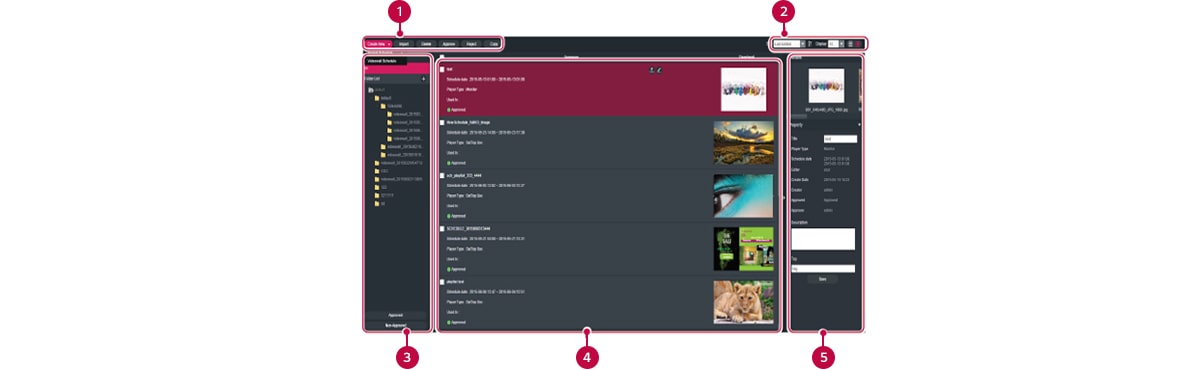
Screen image of SuperSign W scheduling page

1. Action Buttons

– Create New : Create a schedule .
– Import : Loads a schedule.
· Supports two file formats : XML, ZIP
· when importing the exported ZIP file, all of the included content will be registered on the same server.
– Delete : Delete a schedule .
– Approve : Approve a schedule not approved.
– Reject : Reject a schedule not approved.
– Copy : Copies or moves multiple schedules.

2. Sorting

– Sort : Sort by various category. (e.g., Last date update)
– Sort in ascending or descending order.
– Display : set the number of items to display by pressing the ▼ button.
– List view/ Normal view/ Thumbnail view

3. Schedule list

Display the list of saved schedules.
– All : View the list of all schedules.
– Approval : View the list of approved schedules.
– Non-Approved : View the list of unapproved schedules.
– Rejected : View the list of rejected schedules.

4. Details list

– Summary
· Displays file name, schedule date, player type, schedule player and approval status.
· Enabled when you click the mouse.
· Switches to the schedule editing screen.
· Exports the schedule.
· Copy schedule ( However, you can only copy schedules for the videowall schedule.)
– Thumbnail : Displays the thumbnail image and filename of a content file in a schedule.

5. Detail

Provides the player details of the selected schedule.
– Preview : Thumbnail image and file name of the content included in the schedule.
– Property : Schedule properties (the title, player type, schedule date, editor, creation date, creator, approver, description and tag)
– Available (Distribution) : Provides distribution information that uses the applicable schedule.
* The administrator can edit the information.

Distribution
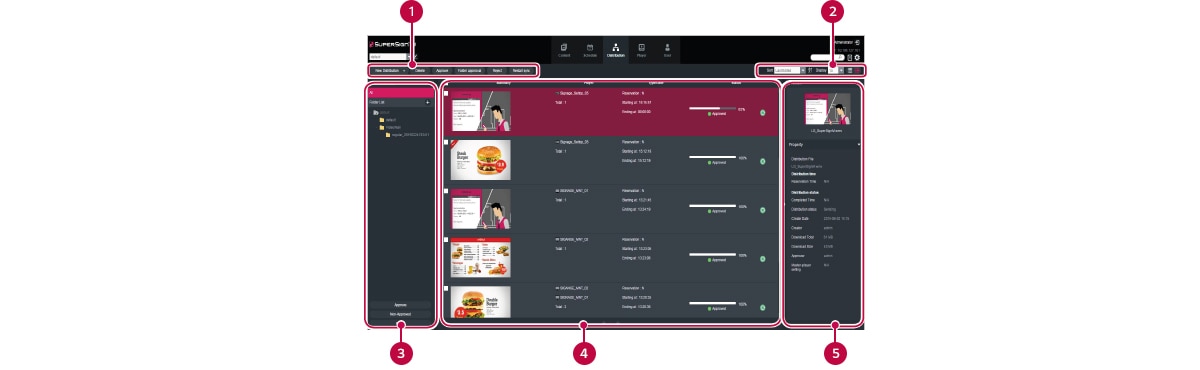
Screen image of SuperSign W distribution page

1. Action Buttons

– New Distribution : Creates a new distribution.
– Delete : Deletes a distribution.
– Approve : Approves a distribution.
– Folder Approval : Approves the entire folder.
– Reject : Rejects a distribution.
– Restart sync : Restarts distribution sync.

2. Sorting

– Sort : Sort by various category. (e.g., Last date update)
– Sort in ascending or descending order.
– Display : set the number of items to display by pressing the ▼ button.
– List view/ Normal view

3. Distribution list

Shows the stored distribution list
– All : Shows all the distribution list.
– Approval : Shows approved distribution list.
– Non-Approved : Shows non-approved distribution list.
– Rejected : Shows rejected distribution list.

4. Details list

– Summary
· Displays player name, IP address, model name, player type and approval status.
· Player Power (On/Off) buttons.
– Thumbnail
· Title and display of the content currently being played.
· List of display (up to 225 items) connected to and recognized in the player.

5. Detail

Allows the user to check the information page for distribution selections and edit its information.
– Preview : Thumbnail image and file name of content to distribute
– Property : Provides the property values for the distribution (distribution file name, distribution time, distribution status)
– Player : Display the player name, IP address, model name and player type
Key Feature

Screen image of SuperSign W graphic user interface

Graphic User Interface Changed

For the better readability, the new color based Interface and a graphical dashboard
For the better usage, improved feature each tab

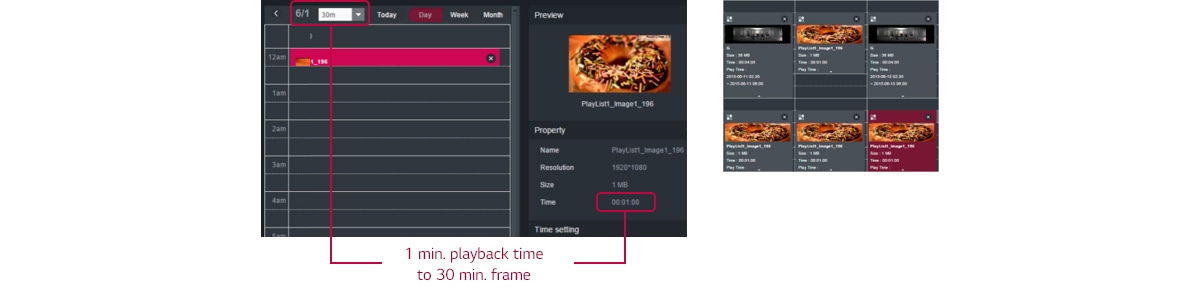
Screen image of SuperSign W schedule timeline page improvements

Schedule Tab

– Auto fit the schedule timeline
Even Playback time is too short, it automatically fits to the calendar for easy editing
– Schedule Copy/Paste
For repeating of schedule Ctrl+C, Ctrl+V command support
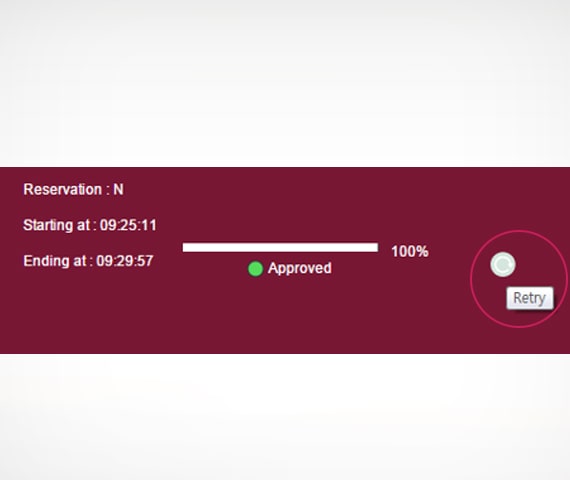
Screen image of SuperSign W distribution tab improvements

Distribution Tab

– Re-Distribution : Through retry button, easily Distribution same content
– Before : Need to start the new distribution all steps
– From now on : re-distribution by one click
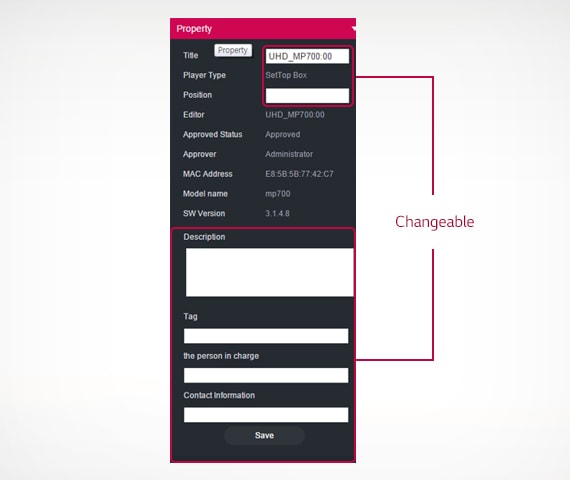
Screen image of SuperSign W player tab improvements

Player Tab

– Player Property Setting : Model Info. changing support on power-off status
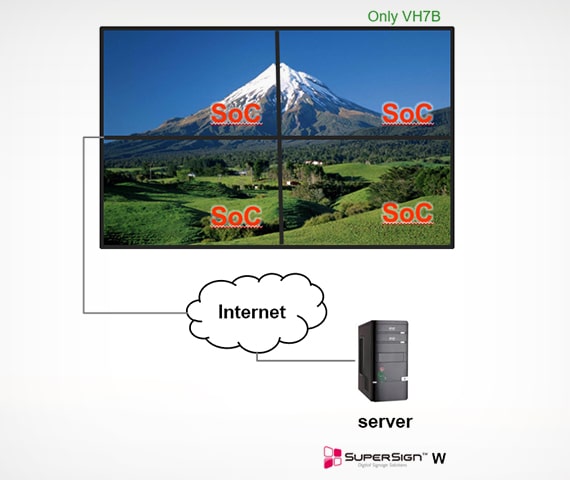
More Unique features are included on licensed version

Featuring more unique features on licensed version: PC-Less videowall

PC-Less Videowall

– SoC Sync. Distribution : PC-less videowall perfectly support on SuperSign solution
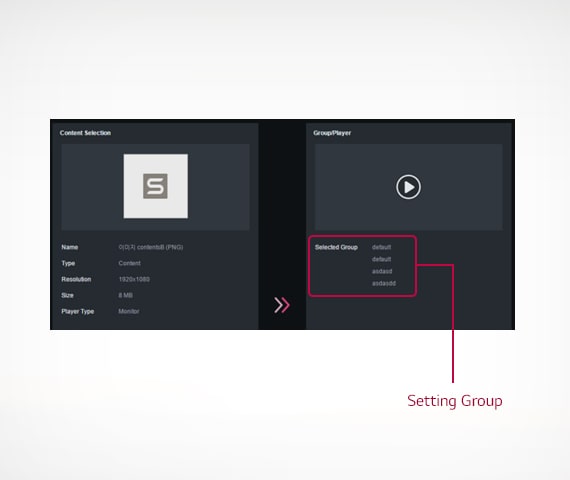
Featuring more unique features on licensed version: Enhanced Distribution

Enhanced Distribution

– Group Distribution : Based on each player group (or workgroup) distributes by one time
– Network failover : Whenever network failure on distribution, server supports hold and continue the distribution on the network recover

ID_02_SuperSignLiteW_12_1460686759343

Holiday Setting

– Manual Holiday setting : Support each schedule deleting feature
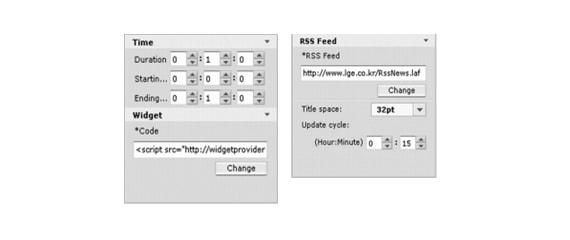
Enhance features for webOS product and support UHD model

Featuring more unique features on licensed version: enhanced web format

Enhanced web format

Widget, RSS Feed (webOS 2.0)
*No more needs of Media Player for using various Web content.
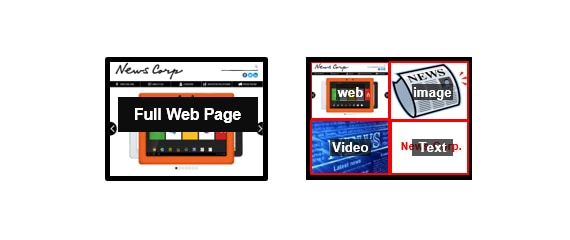
Featuring more unique features on licensed version: enhanced flexibility

Enhanced Flexibility

various usage support w/ web page
– Before : web Page support only 1 zone (Full Page)
– From now on : web page editing support, the size can be changed (HTML5+Video+Image)
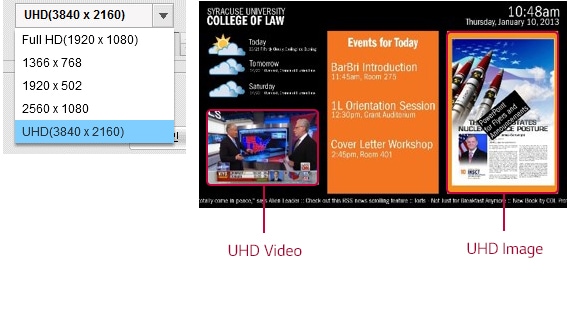
Featuring more unique features on licensed version: enhanced converge

Enhanced Converge

UHD Content Editing
– UHD model is covered by the editor
– UHD resolution Media is also supported
Featuring more unique features on licensed version: enhanced usability

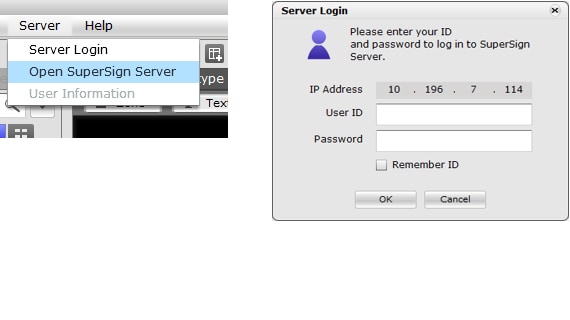
Enhanced Usability

Reduced Steps
– One step open server menu
– Server login pop up for simple connection
Featuring more unique features on licensed version: playlist editor

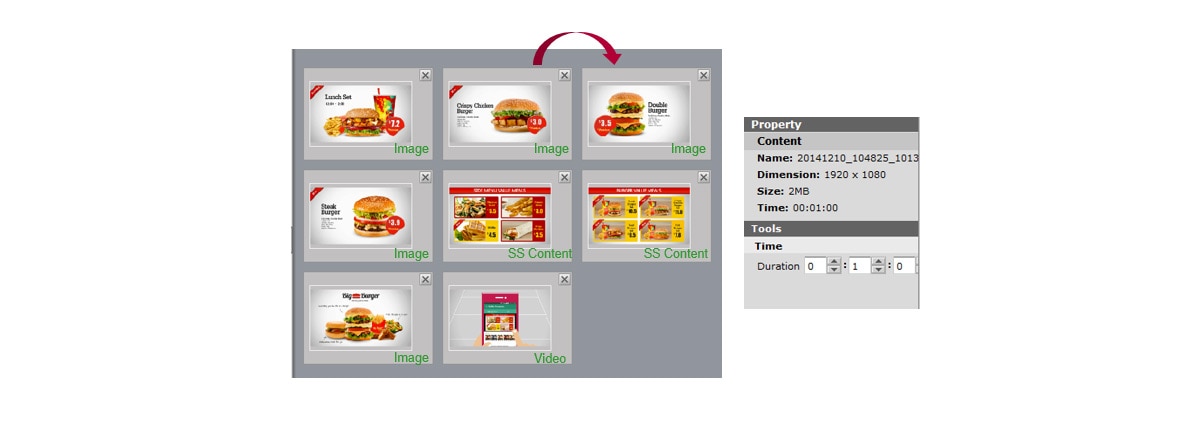
Playlist Editor

Make content package. Image, video, and even SuperSign content can be a source of playlist


– Simple drag & drop method, playlist can be created
· Input media (source) to canvas
· Re-arrange the list
– Playtime can be changed on property tab
– Example
· Image + Image + Video
· SuperSign Content (Video + Flash) + Video + Flash
· Video + Video + Office File
Featuring more unique features on licensed version: additional templates

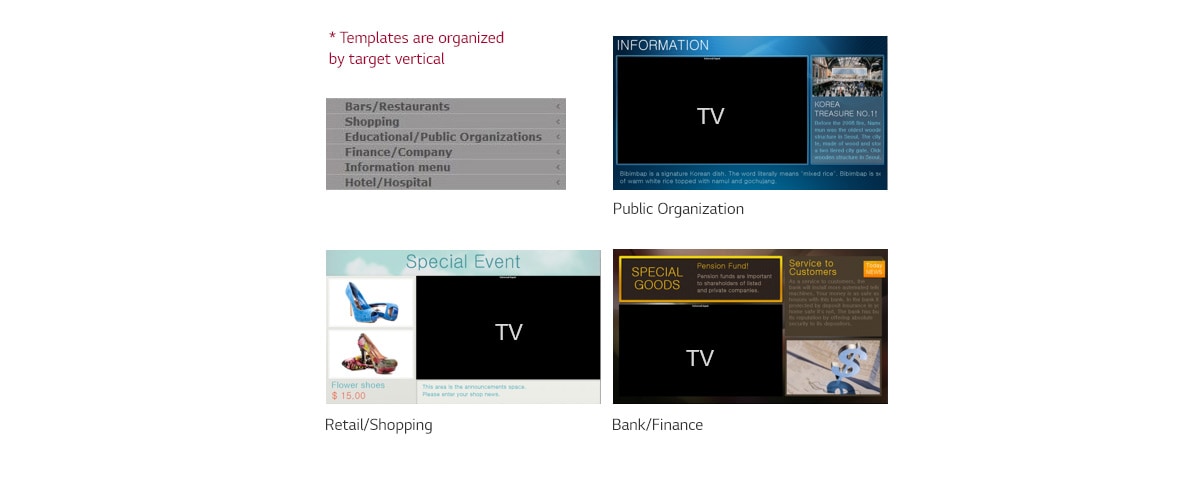
Templates

42 templates are added on 3.0 version. Some of them supports TV input area
Featuring more unique features on licensed version: QR Code Creation Tool

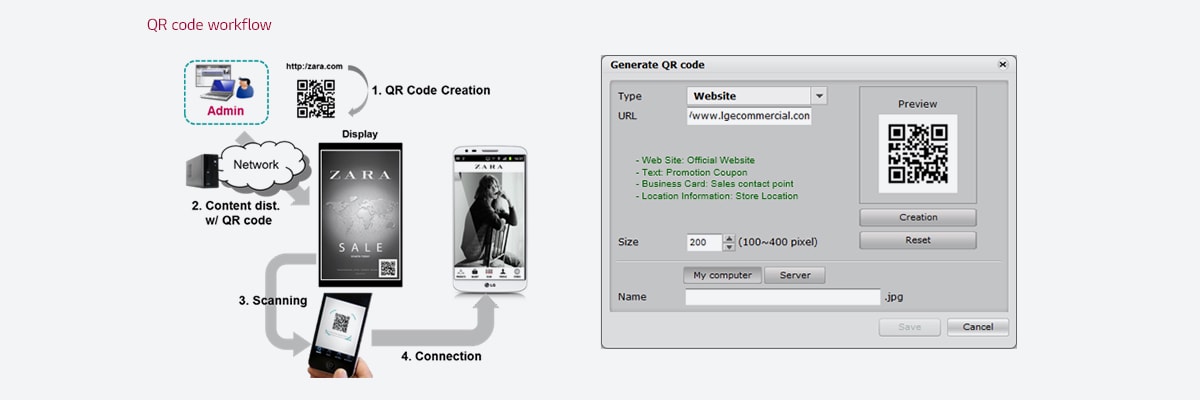
QR Code Creation Tool

QR code creator provides the more effective advertisement
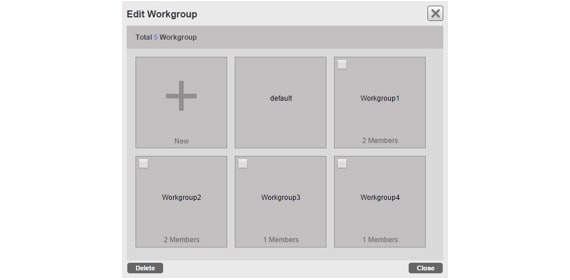
Workgroup

Systematize multi-admin rules

Featuring more unique features on licensed version: user separation function

User separation function is available

Separation by customers or region
– All data is belong to workgroup (content, schedule, player, distribution)
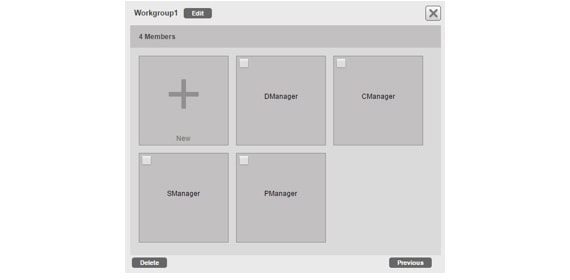
Featuring more unique features on licensed version: admin approval authority

Admin can vest the approval authority

One of the member on each workgroup can be an admin

Power off Distribution

Even connected displays are powered off, the content distribution surely works through SuperSign

Featuring more unique features on licensed version: power off distribution

Distribute content & check power status

– Power on: Distribution starts immediately
– Power off: Reserve for distribution, then whenever target display powered on, distribution starts
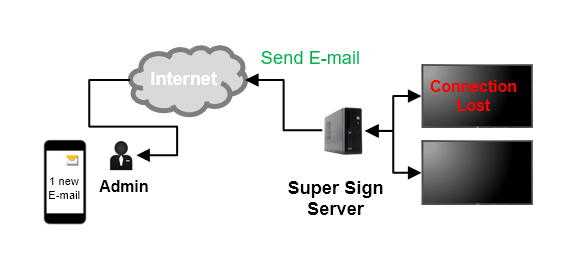
E-mail Alert

Enhanced error monitoring feature, admin can check the error alert by the e-mail

Featuring more unique features on licensed version: E-mail Alert workflow

E-mail Alert workflow


Featuring more unique features on licensed version: error check item

Error Check Item


Immediate Sending

Separation by customers or region
– All data is belong to workgroup (content, schedule, player, distribution)

Period Sending

One of the member on each workgroup can be an admin
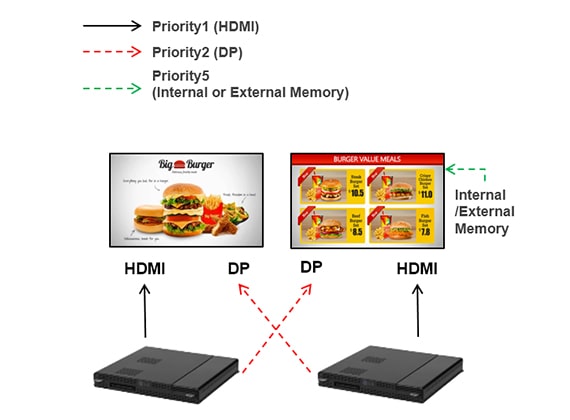
Failover Setting

Remote media failover image change by SuperSign W

Featuring more unique features on licensed version: failover method

Priority of failover method

*SE3B, SE3KB (External Memory Only)
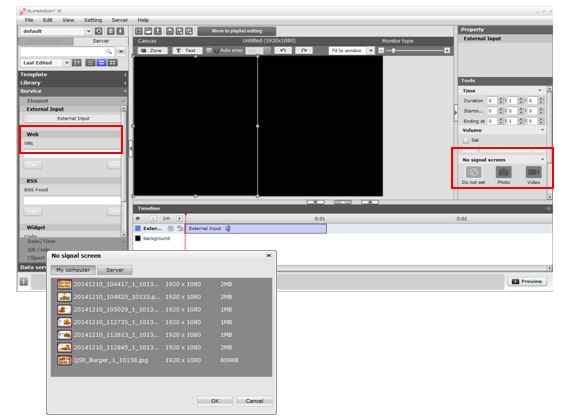
Featuring more unique features on licensed version: failover media setting by the editor

Failover media setting by the Editor

① Click External Input
② Select the failover media
③ Distribute content with it
Proof of Play

Distributed the content include variable data. New data source is coming up every session, and it depends on user set.

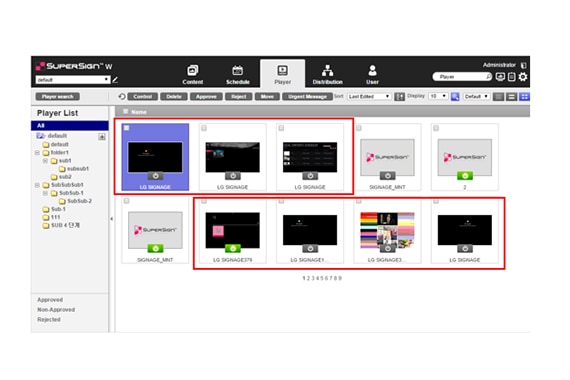
Featuring more unique features on licensed version: check the screen on server SW

Check Screen on Server SW

Provide All connected display status at once
*only Media Player & webOS product supports
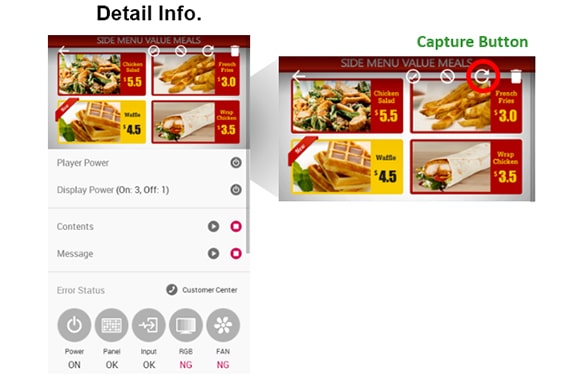
Featuring more unique features on licensed version: check the screen on mobile version

Check Screen on Mobile version

Thru the capture button, able to check each screen status.

Other products

  • Cisco Aironet 3802I specify
  • Cisco 890 Series Integrated Services Routers specify
  • Cisco SB RV215W specify
  • Cisco SB RV110W specify
  • Cisco SB SG500-28P specify
  • LG 55UU661H
  • Cisco SB SF302-08PP specify
  • Grandstream GXW4232 Analog VoIP Gateway specify
×

    About us

    RCI-Consulting is a high-tech company that brings together a team of professionals who combine the knowledge needed to implement complex engineering projects, and fifteen years of experience in their implementation in various sectors of the economy.

    Our partners

    Hotel TV | Buy WiFi

    Our contacts

    Vasyl Stus str., 35/37
    Kyiv, Ukraine 03142
    +38 044 499 79 63
    +38 044 499 79 64
    office@test.rci-c.com
    Розрахувати вартість Інформаційної системи
    []
    1 Особисті дані
    2 Діагональ телевізора
    3 Кількість телевізорів
    Особисті дані
    Яка діагональ телевізора потрібна?
    Необхідна кількість телевізорів
    keyboard_arrow_leftПОвернутися
    ДАліkeyboard_arrow_right
    ×
    Зворотній зв'язок

      ×
      Calculate the cost of the Information System
      []
      1 Personal Details
      2 Screen Size
      3 Number of TVs
      Personal Details
      Which Screen Size You Need?
      Need Number of TVs
      keyboard_arrow_leftBACK
      NEXTkeyboard_arrow_right
      ×
      Callback

        ×
        Рассчитать стоимость Информационной системы
        []
        1 Личные данные
        2 Диагональ экрана
        3 КОличество телевизоров
        Личные данные
        Какая диагональ телевизора нужна?
        Необходимое количество телевизоров
        keyboard_arrow_leftНАЗАД
        ВПЕРЕДkeyboard_arrow_right
        ×
        Обратная связь

          ×
          Конфігуратор вартості паркінгу

          []
          1 Особисті дані
          2 Необхідна конфігурація
          Особисті дані
          Чи маєте систему відеоспостереження?
          Чи вже маєте автоматизовані шлагбауми або ворота?
          keyboard_arrow_leftПОвернутися
          ДАліkeyboard_arrow_right

          ×
          Конфигуратор стоимости паркинга

          []
          1 Личные данные
          2 Необходимая конфигурация
          Личные данные
          Имеете систему видеонаблюдения?
          Уже есть автоматизированные шлагбаумы или ворота?
          keyboard_arrow_leftВЕРНУТЬСЯ
          ДАЛЕЕkeyboard_arrow_right

          ×
          Parking System Cost

          []
          1 Personal data
          2 Required configuration
          Personal data
          Do you have a CCTV system?
          Already have automated barriers or gates?
          keyboard_arrow_leftPrevious
          Nextkeyboard_arrow_right

          ×

          Generic selectors
          Exact matches only
          Search in title
          Search in content
          Post Type Selectors
          Search in posts
          Search in pages

          ×